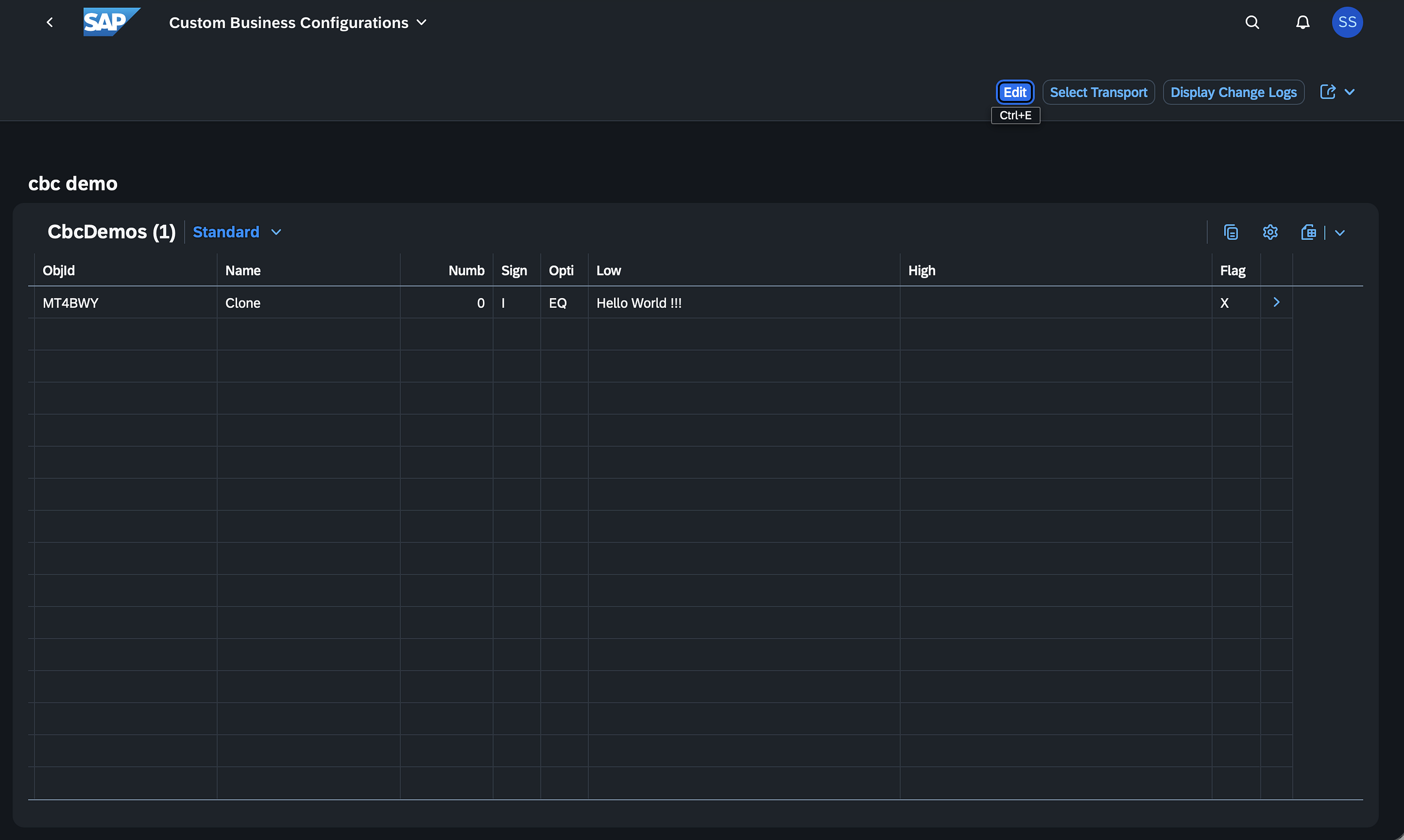
In this blog, I’ve referenced SAP Blogs, SAP Developer Tutorials, and included relevant images to support the steps. I’ve documented all the errors I encountered during the setup of the SAP Desktop Agent in both the Production and Quality VMs, along with the resolutions that worked for me.
Please note that error scenarios may vary depending on your environment. If you come across any other issues, feel free to share them in the comments, I’ll do my best to help!
Install and Set Up Desktop Agent 3 | SAP Tutorials
Install Desktop Agent and Manage Updates | SAP Help Portal
First you need Access to a SAP BTP tenant with SAP Build Process Automation
The Desktop Agent 3 is an on-premise component of SAP Build Process Automation that is installed locally on user desktops. It executes automation projects that launch and run applications of various kinds, reads information from screens, enters data, clicks options, and processes data.
Manually means open this link SAP Development Tools go into the last of page Scroll down to SAP Process Automation: Desktop Agent 3 for Trial and install the sap desktop agent from there
When you click on “Go to RBSC Portal,” it will prompt you to log in. You need to enter the user credentials of someone who has S-user access. After a successful login, you will see a screen like this.
Then click on add new user,
Please make sure you assign the ProcessAutomationAdmin role when you subscribe to SAP Build Process Automation in your BTP account. If you do not do so you will not be able to add a user.
Go to Download Page
Open file path
You can open the file with administrator rights, and install the service, only if your use case requires it. For example, using the agent in unattended mode in production.
When you are running automation in unattended mode in production or quality vm, you must install the desktop agent as a service.
Right click and run as administrator
I was setting this Desktop Agent in my production VM, so I want to install this as per machine not for current user only.
Errors you can face while registering the agent with your tenant:
Registration failed because we couldn’t get the access token from the tenant.
Go to tenant, add tenant:
After saving, when you click on Activate, if it shows “Connecting” for 1 to 2 minutes after entering your login credentials, then navigate to the History tab and click on Events. If you see an error stating that the registration failed because we couldn’t get the access token from the tenant.
Resolution
Add “websocketChoice”: “wsProxy” in the configuration file when Desktop Agent version is 3.19.56 or higher.
Follow the following steps:
Install Agent 3.19.56 or HigherShutdown AgentOpen the following folder: C:UsersYourUserAppDataRoamingSAPDesktopAgentStoreEdit the file config.json, at the end of the file (just after the “isTenantCentralizationDone”: true,) add the following line “websocketChoice”: “wsProxy”.Notice that the comma should be added after “isTenantCentralizationDone”: true
2. Health check is Not Successful Error
For this error, you need to refer to the relevant SAP Note and the solution provided by SAP.
You should reach out to your VM infra team and share the resolution details with them, as the solution needs to be implemented in the VM.
{
In my case, the infra team said that the SSL inspection opens all files before downloading, checks what is inside, then re-encrypts and tags them as “good.”
The problem is that when this action is performed, the certificate of the package is changed from (for example) the SAP certificate to the ZIA (Internet Access) certificate, and for some processes, this is not acceptable.
We had to filter out these URLs from SSL inspection, and after these changes it started working.
}
3. Desktop Agent was getting disconnected after 20-30 minutes when I disconnected from the VM.
And the desktop agent gets disconnected.
According to SAP, this is expected behavior, when a user session is logged out, the Desktop Agent will be disconnected.
However, earlier when I was disconnecting from the VM, the Desktop Agent used to get disconnected after 20–30 minutes.
This behavior was not normal, as the Desktop Agent is expected to remain active as long as there is an active user session in the VM.
After receiving the response from SAP, I communicated with my infra team and explained that when I disconnect from the VM, the user session should not be logged off after 20 to 30 minutes — the session needs to remain active.
This is important because the SAP Desktop Agent is dependent on the user session. As long as the user session remains active, the Desktop Agent will also stay connected and continue working.
Based on this, the infra team made a change in the GPO settings, and since then, it has been working correctly.
Q: When I was disconnecting from the VM, why was the user session getting logged off after 20 to 30 minutes, not immediately?
A: When you disconnect from a VM without logging off, Windows keeps the session in a disconnected state.
By default, Group Policy settings may define a timeout period after which disconnected sessions are automatically ended.
This is usually set to conserve system resources or due to company security policies.
In your case, the system likely had a default timeout of 20 to 30 minutes configured, which caused the user session to log off automatically after that time.
How is it working after this GPO change shown in the image?
The GPO setting you have applied for is:
Set time limit for disconnected sessions is EnabledEnd a disconnected session is set to Never
This means disconnected sessions will no longer be automatically ended, regardless of how long they remain disconnected.
As a result, the user session remains active even after disconnecting the VM.
Since the SAP Desktop Agent relies on an active user session, it now continues running without getting disconnected.
Precautionary Measure When the Desktop Agent Gets Disconnected in the VM:
So, in the Production or Quality VM, if the SAP Desktop Agent gets disconnected due to any reason, you can receive an alert notification within 5 minutes. This allows you to manually check and quickly resolve the issue.
To enable this, you need to configure an Alert Handler in your SAP Build Process Automation Lobby.
As part of this setup, you must also create an SMTP destination in your BTP Cockpit to handle email notifications.
Alert Handler for the Agent Disconnected Event | SAP Help PortalConfigure an SMTP Mail Destination | SAP Help Portal
Steps to test the SMTP destination in SAP Build Lobby:
Step 1: Go to SAP Build Lobby
Step 2: Select Control Tower
Step 3: Click on Mail Server
Step 4: Click on Send Test Mail
Step 5: Click Send Test Mail
3597116 – Logging off a Virtual Machine disconnects the Desktop Agent – SAP for Me3531931 – Unlocking VM Session for Unattended Automation in SAP Build Process Automation – SAP for Me3208410 – “Can’t unlock” error while running unattended bot in a Virtual Machine – SAP for Me
In this blog, I’ve referenced SAP Blogs, SAP Developer Tutorials, and included relevant images to support the steps. I’ve documented all the errors I encountered during the setup of the SAP Desktop Agent in both the Production and Quality VMs, along with the resolutions that worked for me.Please note that error scenarios may vary depending on your environment. If you come across any other issues, feel free to share them in the comments, I’ll do my best to help!Install and Set Up Desktop Agent 3 | SAP TutorialsInstall Desktop Agent and Manage Updates | SAP Help PortalFirst you need Access to a SAP BTP tenant with SAP Build Process AutomationThe Desktop Agent 3 is an on-premise component of SAP Build Process Automation that is installed locally on user desktops. It executes automation projects that launch and run applications of various kinds, reads information from screens, enters data, clicks options, and processes data.Manually means open this link SAP Development Tools go into the last of page Scroll down to SAP Process Automation: Desktop Agent 3 for Trial and install the sap desktop agent from there When you click on “Go to RBSC Portal,” it will prompt you to log in. You need to enter the user credentials of someone who has S-user access. After a successful login, you will see a screen like this.Then click on add new user,Please make sure you assign the ProcessAutomationAdmin role when you subscribe to SAP Build Process Automation in your BTP account. If you do not do so you will not be able to add a user. Go to Download PageOpen file pathYou can open the file with administrator rights, and install the service, only if your use case requires it. For example, using the agent in unattended mode in production.When you are running automation in unattended mode in production or quality vm, you must install the desktop agent as a service.Right click and run as administratorI was setting this Desktop Agent in my production VM, so I want to install this as per machine not for current user only. Errors you can face while registering the agent with your tenant:Registration failed because we couldn’t get the access token from the tenant.Go to tenant, add tenant: After saving, when you click on Activate, if it shows “Connecting” for 1 to 2 minutes after entering your login credentials, then navigate to the History tab and click on Events. If you see an error stating that the registration failed because we couldn’t get the access token from the tenant. ResolutionAdd “websocketChoice”: “wsProxy” in the configuration file when Desktop Agent version is 3.19.56 or higher.Follow the following steps:Install Agent 3.19.56 or HigherShutdown AgentOpen the following folder: C:UsersYourUserAppDataRoamingSAPDesktopAgentStoreEdit the file config.json, at the end of the file (just after the “isTenantCentralizationDone”: true,) add the following line “websocketChoice”: “wsProxy”.Notice that the comma should be added after “isTenantCentralizationDone”: true 3401479 – Error Message: “The registration failed because we couldn’t get the access token from the tenant.” | SAP Knowledge Base Article 2. Health check is Not Successful ErrorFor this error, you need to refer to the relevant SAP Note and the solution provided by SAP.3538761 – Healthcheck is Not Successful Error Seen in Desktop Agent When Connecting to Tenant in SAP Build Process Automation – SAP for Me You should reach out to your VM infra team and share the resolution details with them, as the solution needs to be implemented in the VM.{In my case, the infra team said that the SSL inspection opens all files before downloading, checks what is inside, then re-encrypts and tags them as “good.”The problem is that when this action is performed, the certificate of the package is changed from (for example) the SAP certificate to the ZIA (Internet Access) certificate, and for some processes, this is not acceptable.We had to filter out these URLs from SSL inspection, and after these changes it started working.}3. Desktop Agent was getting disconnected after 20-30 minutes when I disconnected from the VM.And the desktop agent gets disconnected.According to SAP, this is expected behavior, when a user session is logged out, the Desktop Agent will be disconnected. However, earlier when I was disconnecting from the VM, the Desktop Agent used to get disconnected after 20–30 minutes.This behavior was not normal, as the Desktop Agent is expected to remain active as long as there is an active user session in the VM.After receiving the response from SAP, I communicated with my infra team and explained that when I disconnect from the VM, the user session should not be logged off after 20 to 30 minutes — the session needs to remain active.This is important because the SAP Desktop Agent is dependent on the user session. As long as the user session remains active, the Desktop Agent will also stay connected and continue working.Based on this, the infra team made a change in the GPO settings, and since then, it has been working correctly.Q: When I was disconnecting from the VM, why was the user session getting logged off after 20 to 30 minutes, not immediately?A: When you disconnect from a VM without logging off, Windows keeps the session in a disconnected state.By default, Group Policy settings may define a timeout period after which disconnected sessions are automatically ended.This is usually set to conserve system resources or due to company security policies.In your case, the system likely had a default timeout of 20 to 30 minutes configured, which caused the user session to log off automatically after that time.How is it working after this GPO change shown in the image?The GPO setting you have applied for is:Set time limit for disconnected sessions is EnabledEnd a disconnected session is set to NeverThis means disconnected sessions will no longer be automatically ended, regardless of how long they remain disconnected.As a result, the user session remains active even after disconnecting the VM.Since the SAP Desktop Agent relies on an active user session, it now continues running without getting disconnected.Precautionary Measure When the Desktop Agent Gets Disconnected in the VM: So, in the Production or Quality VM, if the SAP Desktop Agent gets disconnected due to any reason, you can receive an alert notification within 5 minutes. This allows you to manually check and quickly resolve the issue.To enable this, you need to configure an Alert Handler in your SAP Build Process Automation Lobby.As part of this setup, you must also create an SMTP destination in your BTP Cockpit to handle email notifications. Alert Handler for the Agent Disconnected Event | SAP Help PortalConfigure an SMTP Mail Destination | SAP Help Portal Steps to test the SMTP destination in SAP Build Lobby:Step 1: Go to SAP Build Lobby Step 2: Select Control Tower Step 3: Click on Mail Server Step 4: Click on Send Test MailStep 5: Click Send Test Mail 3597116 – Logging off a Virtual Machine disconnects the Desktop Agent – SAP for Me3531931 – Unlocking VM Session for Unattended Automation in SAP Build Process Automation – SAP for Me3208410 – “Can’t unlock” error while running unattended bot in a Virtual Machine – SAP for Me Read More Technology Blog Posts by Members articles
#SAP
#SAPTechnologyblog